
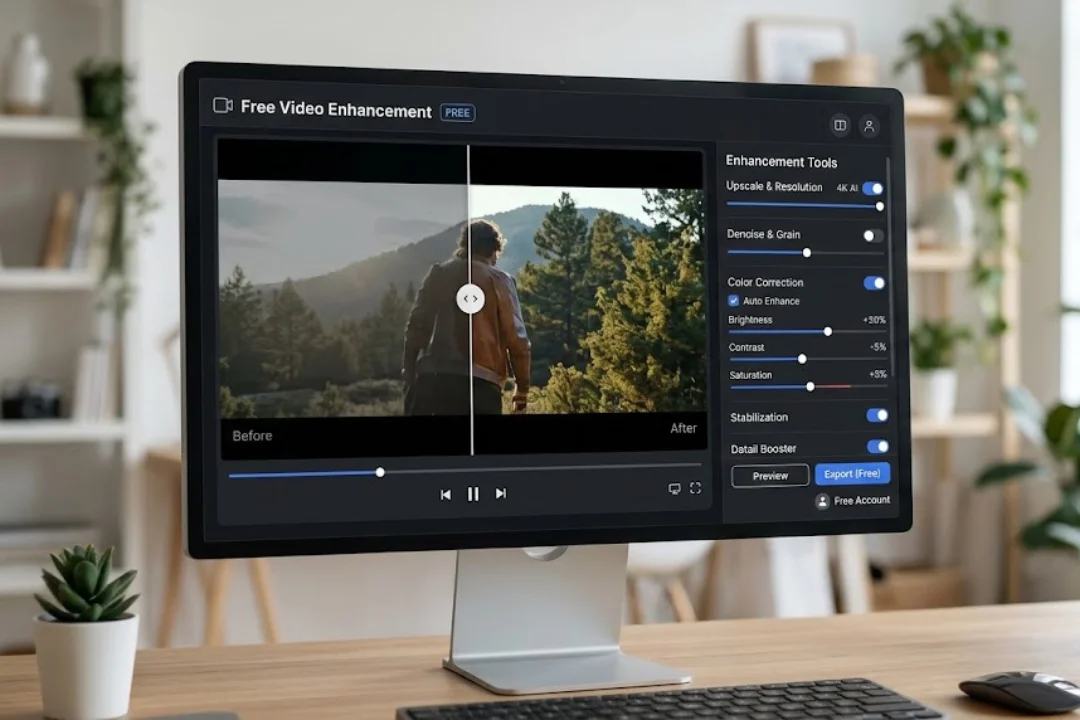
Poor video quality does not always mean you need expensive editing software. Several free tools can sharpen footage, reduce noise, or increase resolution with little setup. The right choice depends on your clip length, privacy needs, device, and desired output.
Video enhancing free tools can improve blurry, grainy, or low-resolution clips without requiring paid desktop software. Browser-based options can upscale resolution, sharpen details, correct color, and reduce noise. Some process videos locally, while others use cloud servers and impose limits on file size, duration, credits, or export quality.
| What to Check | Why It Matters |
|---|---|
| Resolution | Some tools support 1080p, while others can upscale toward 4K |
| Free limits | Free access may include time, size, credit, or export restrictions |
| Watermark | Some free plans add branding to exported footage |
| Privacy | Local processing keeps footage on your device |
| File formats | MP4 support is common, while MOV, MKV, or AVI support varies |
| Processing speed | AI enhancement can require substantial GPU or cloud processing |
| Best use | Social clips, old footage, screen recordings, and product videos need different treatment |
What Does Free Video Enhancement Actually Do?
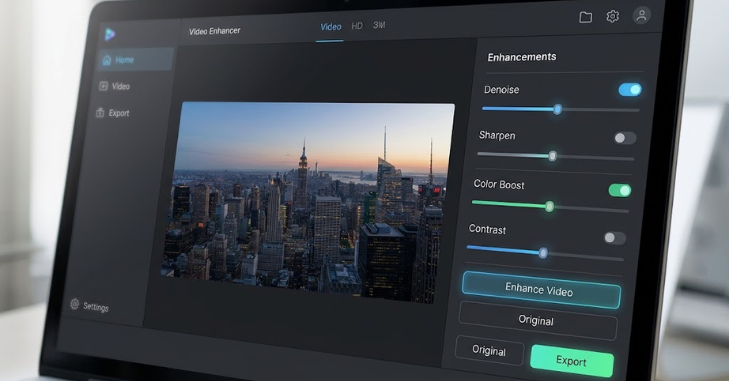
Video Enhancing Free improves existing footage rather than creating an entirely new recording. Common adjustments include sharpening, noise reduction, brightness correction, color improvement, and resolution upscaling. AI-based systems may also estimate missing image detail between existing pixels.
Upscaling does not magically restore information that was never captured. A heavily compressed 240p clip will still have source limitations after processing. Better tools can make edges cleaner and improve viewing quality, but results depend heavily on the original file.
Traditional editing tools usually change exposure, color, contrast, and sharpness. AI enhancers can analyze individual frames and estimate details during enlargement. Adobe explains that modern enhancement can work frame by frame, which can increase resolution and reduce visible artifacts.
Best Free Video Enhancer Options in 2026
The current market includes completely free browser tools and limited free services. You should compare their restrictions before uploading important footage. Free access policies can also change, so confirm current limits before processing a large project.
| Tool | Free Access | Key Strength | Main Limitation | Best For |
|---|---|---|---|---|
| BetterVideo.ai | Free browser processing | Local 2x upscaling up to 4K | Depends on your hardware | Privacy-focused users |
| WaveSpeed | Free enhancer | Local processing and no watermark | Short-video focus | Quick browser upscaling |
| Canva Video Upscaler | Free with clip limits | Simple workflow and editing | Tight file and duration limits | Social media clips |
| CapCut | Free enhancement features | Editing plus AI upscaling | Features vary by platform | Creators wanting editing tools |
| Adobe Firefly | Limited free usage | High-quality AI workflow | Credits and clip restrictions | Creative projects |
| Media.io | Free online access | Denoising and upscaling | Upload and duration limits | Simple online enhancement |
| ToolDeck | Free local processing | Privacy and no server upload | Hardware affects speed | Short private clips |
1. BetterVideo.ai
BetterVideo.ai processes footage inside your browser rather than uploading it to a cloud server. Its current tool offers 2x resolution enlargement with output up to 4K. It also provides several quality levels for different hardware.
This approach can be useful when privacy matters. Your computer performs the processing, so performance depends on its available graphics hardware. Longer videos may require significantly more time than short clips.
2. WaveSpeed
WaveSpeed offers browser-based enhancement with 2x, 3x, and 4x scaling options. Its free enhancer currently keeps video processing on the user’s device. The tool also states that it keeps the original audio during enhancement.
Its limits make it better suited to shorter clips. Current guidance focuses on videos up to 60 seconds for the free browser workflow. Larger projects may require a different service or paid processing option.
3. Canva Video Upscaler
Canva provides an AI video upscaler through its editing environment. Users can choose enhancement styles and continue editing after the upscale finishes. That makes it convenient for presentations, social posts, and short marketing videos.
The free upscaler has tighter limits than some dedicated tools. Canva currently states that free clips must be MP4 files under 10MB and ten seconds. Those restrictions make it unsuitable for longer recordings.
4. CapCut
CapCut combines video enhancement with a larger editing platform. Its tools can improve sharpness and upscale supported footage toward higher resolutions. You can also continue trimming, captioning, and editing the result.
CapCut makes sense when enhancement is only one part of your workflow. Feature availability can differ between web, desktop, mobile, and account levels. Check the export options before committing to a long project.
5. Adobe Firefly
Adobe Firefly supports AI-assisted enhancement and upscaling within Adobe’s creative environment. Current options include 1080p and 4K output through supported enhancement models. It can also reduce visible noise and improve clarity.
Adobe offers limited free usage rather than unrestricted processing. Current uploads also have format, size, and duration requirements. This option fits users who already work with Adobe tools.
How to Enhance Video Quality for Free
The basic workflow stays similar across most services. Start with a short test clip instead of processing your entire recording immediately. This helps you compare quality before spending processing time.
1. Choose your source file. Use the highest-quality original version you still have. 2. Pick an enhancement tool. Match its privacy, size, and resolution limits to your project. 3. Select the output resolution. Avoid 4K unless the source and viewing purpose justify it. 4. Apply noise or sharpness carefully. Aggressive processing can make faces and textures look unnatural. 5. Preview the result. Compare fine details, movement, text, skin, and darker areas. 6. Check the audio. Confirm that the tool retained synchronization and sound quality. 7. Export one test version. Review it on the screen where viewers will normally watch it.
For more guides covering useful online technology, browse the Readlish Tech section. Readers creating videos for brands can also explore Readlish Digital Marketing. Both sections can support a broader content-production workflow.
How to Get Better Results From Free Tools
Start with realistic expectations about the source recording. AI enhancement performs better on footage with recognizable edges, faces, text, and moderate compression. Severe blur, clipping, or missing detail cannot always be repaired convincingly.
Use modest enlargement before pushing directly toward 4K. A clean 720p-to-1080p result may look better than an aggressively reconstructed 4K export. Compare both versions at normal viewing size instead of zooming deeply into individual frames.
Color correction can sometimes make a bigger difference than resolution. Fixing poor exposure, flat contrast, or an incorrect white balance can improve perceived quality quickly. Canva, CapCut, and many standard editors provide these controls without requiring advanced skills.
Keep a copy of the original file before processing. AI tools can introduce artificial textures, oversharpened edges, or strange details around moving objects. Returning to the source gives you another option when an export looks unnatural.
Local Processing vs. Cloud Video Enhancement
Privacy should influence your choice when footage contains private people, client information, or unpublished material. Local tools process frames using your own device rather than transferring them to another company’s servers. BetterVideo.ai and several newer browser tools use this approach.
Cloud tools can be faster when your computer lacks a capable GPU. They may also provide heavier models that require more computing power. The tradeoff is that your video must usually be uploaded for processing.
Read the privacy terms before uploading sensitive footage. Marketing claims such as “secure” do not always explain retention periods or storage practices. Local processing removes much of that concern because the source file stays on your hardware.
Can Free Video Enhancers Really Create 4K?
A tool can create a file with 4K pixel dimensions without recreating every detail from a native 4K camera. AI systems estimate new pixels using patterns learned during training. The result can look sharper, but it remains an interpretation of the original footage.
This distinction matters most with old or heavily compressed videos. Faces, text, hair, and small objects may gain artificial details during aggressive processing. Always inspect important footage before deleting your original version.
For general technology reading beyond editing tools, visit the Readlish homepage. The site also covers AI-related topics, including its article on AI-powered preventive technology. These pages provide additional context around how AI tools are entering everyday workflows.
Which Free Video Enhancer Should You Choose?
For privacy, a local browser tool is usually the strongest starting point. BetterVideo.ai and WaveSpeed currently process supported clips on the user’s device. This avoids uploading personal footage to a remote service.
Canva works well for short social clips that need additional design work. CapCut is better when you also want captions, trimming, effects, or timeline editing. Adobe Firefly suits users who want enhancement inside a wider creative workflow.
Our practical recommendation is to test two tools with the same ten-second clip. Compare sharpness, movement, faces, text, export size, and processing time. The winner should be the one that improves your footage without making it look artificial.
Video Enhancing Free: Common Mistakes to Avoid
Free tools can produce strong results, but poor settings can make footage worse. Oversharpening creates bright edges and unnatural skin texture. Excessive denoising can remove details that should remain visible.
Avoid repeatedly exporting and re-uploading the same video. Each compressed export can remove more information from the source. Make enhancement changes from the original file whenever possible.
Do not assume a 4K label guarantees better viewing quality. Resolution is only one part of image quality. Bitrate, noise, motion, lighting, compression, and source sharpness also affect the final result.
Final Takeaway
You do not need paid professional software for every quality problem. Free tools can improve resolution, color, noise, and sharpness when the original video contains enough usable detail. The best results usually come from conservative settings and careful before-and-after comparison.
Start with a short clip and test at least two services. Choose the tool that preserves natural motion and detail rather than producing the largest resolution number. Keep the original file, review privacy requirements, and export only after checking the final result carefully.
Frequently Asked Questions
Is video enhancing free online?
Yes, several online tools provide free enhancement options. Some are completely free, while others use credits or impose file limits. Always check the current restrictions before uploading a large video.
Can I enhance a blurry video for free?
You can often improve mild blur using sharpening or AI enhancement. Severe motion blur cannot always be reconstructed accurately. Testing a short section first will show whether your footage responds well.
Can a free video enhancer upscale footage to 4K?
Several current services advertise 4K output or 4K upscaling. The result depends on the original resolution and compression quality. A 4K export cannot guarantee native-camera 4K detail.
What is the best video enhancing free option without a watermark?
Local browser tools are worth checking first when you want watermark-free exports. BetterVideo.ai and WaveSpeed currently advertise free enhancement without watermarks. Policies can change, so verify the export terms before processing.
Is AI video enhancement safe?
Safety depends partly on where processing occurs. Local browser processing keeps the video on your device, while cloud services require an upload. Review privacy terms before sending personal, confidential, or client footage.